Building Forms
There are multiple options for building forms on the Agentforce 360 Platform, and they span a continuum from low-code to pro-code approaches. On one end of the continuum, Dynamic Forms in Lightning App Builder and screen flows in Flow Builder can be used for low-code solutions. On the other end, the Lightning Web Component (LWC) framework is used for pro-code solutions. Within the continuum, tools can be blended in a number of ways using screen flows that are extended by LWCs and customer-facing forms that are built using Omnistudio.
This guide presents a decision framework and guidance on building forms for UI solutions. Specifically, it uses a dozen runtime and non-functional decision points to properly select the best technology for a given use case.
-
When you’re building create/edit/view layouts for Lightning pages, use Dynamic Forms. Moving forward, we recommend using Dynamic Forms in Lightning App Builder to configure record detail pages.
-
If you need to build, create, or edit a form for one object, use Lightning Pages and Dynamic Forms. This is the easiest way to build forms on the Agentforce 360 Platform. It also provides additional functionality (for example, field visibility control).
-
If you’re building a multi-page form or a wizard and you don’t have strict UX or branding requirements, use a Screen Flow. Screen Flows provide a linear navigation framework for orchestrating multiple forms. You can use LWCs to construct your own framework for navigating between forms, but we recommend letting Flow do the work so that you can focus on the forms themselves rather than focusing on the form state.
-
If you need additional logic or actions to support the form, use a Screen Flow, Omnistudio, or LWCs. Each of these tools offers different ways to enhance your solution by allowing it to expand beyond creating or editing a single record. In this instance, the term more may refer to advanced logic (for example, branching or iteration), or it may refer to actions like integrating with external systems, sending emails, or pushing notifications to a user’s mobile app.
-
If you have sophisticated UX requirements, or if you need to dynamically manage more than UI visibility, use LWC or Omniscript. For requirements that can be met by using theming and column-based layouts, you can build your forms directly in a low-code builder. However, granular control over your form’s style requires the flexibility of LWC. If you’re an Industries customer—and you need pixel-perfect branding or you have complex hierarchical data—use Omnistudio, which allows you to build consumer-grade forms that can handle complex business logic and data transformations.
-
If you need to deploy test automation, use LWC. You can write unit tests for any LWC, regardless of where you embed it. This provides the ability to create a more robust test strategy, which may include bulk testing with multiple records, as well as negative testing.
-
You aren’t bound by “either/or” decisions. You can combine multiple options to reach the best solution for your use cases (for example, if you need Flow’s built-in navigation system and the full styling flexibility that LWC offers, you can use them together).
The following tools are commonly used to implement and extend form experiences.
| Dynamic Forms | Dynamic Forms in Salesforce Lightning App Builder break down monolithic Record Detail components into individual, configurable fields and sections. This feature allows admins to create flexible, high-performance pages by placing fields anywhere, and using visibility rules to show or hide components based on user profile, device, or data, which helps reduce page clutter. |
|---|---|
| Screen Flow | A Salesforce Screen Flow is an interactive automation tool within Flow Builder that requires user input to move through customized, step-by-step business processes. Unlike automated background flows, Screen Flows provide a wizard-like user interface to collect data, display information, or perform actions via Lightning Pages, buttons, or custom apps without writing code. |
| Omnistudio | Salesforce Omnistudio is a low-code suite of tools that are designed to rapidly build guided, industry-specific digital experiences and complex business processes. It enables developers to create pixel-perfect user interfaces (for example, guided workflows and dynamic dashboards) using drag-and-drop components like Flexcards and Omniscripts. With Omnistudio, you can declaratively create LWCs. |
| Lightning Web Components | Salesforce Lightning Web Components are lightweight, custom HTML elements that are built using HTML, CSS, and modern JavaScript, and designed to run natively in browsers for superior Salesforce UI performance. They allow developers to create custom user interfaces that coexist with Aura components, which increases development through industry standards and a detailed component ecosystem. |
This table outlines the tools that are available for building forms via Salesforce, along with their required skills and license considerations.
Note: We’ll dive deeper into the specific features that are supported for each tool, how to choose between click-based tools and code-based tools, and when to combine them in a later section.
| Configuration | Additional License Requirements | |
|---|---|---|
| Dynamic Forms | Low Code | None |
| Screen Flow | Low Code | None |
| Omnistudio | Low Code + Pro Code | Industries Package |
| Screen Flow plus Lightning Web Components | Low Code + Pro Code | None |
| Lightning Web Components | Pro Code | None |
There are a number of decision points to keep in mind when you’re making product and tool selections. This table outlines various decision points and provides high-level guidance.
| Decision Point | Guidance |
|---|---|
| Runtime Use Case Categories | |
| Form Scope and Navigation | Determine whether all fields on your form will fit logically onto a single screen, or if users need to be able to navigate between multiple screens. |
| Location | Identify the location(s) where you want to embed the form, which can range from within a Salesforce app, to a mobile app, to an external website. |
| Controller | Identify the actions or logic that must be performed behind the scenes while users are interacting with your form, including data transformations and integrations with external systems. |
| Validation | Determine whether you have any additional input validation requirements that go beyond the standard system-level validation that Salesforce provides. |
| Interaction Design | Identify the types of interactions or conditions that should trigger dynamic responses within your form. |
| Styling | Determine the level of sophistication that’s necessary for your desired styling and CSS requirements. |
| Layout | Identify your form's layout requirements (for example, the required number of columns, tabs, and accordions) and the ability to display repeating blocks of data. |
| Translation | Determine whether your form must be localized for other languages. |
| Non-Functional Considerations | |
| Security | Determine whether your form should check the user’s access before performing certain operations, whether you want to control who can access the form, and whether you want to control where the form can be embedded. |
| Object Impact | Determine whether your form will operate against a single object or against multiple objects. |
| UI Test Automation | Determine whether your DevOps processes require your form to undergo automated unit testing or automated end-to-end testing. |
| Metrics | Identify how you'd like to track your form's usage, including page views, amount of time spent on the form, completion rates, and success rates. |
| Packaging and Deployment | Determine how you want to distribute or deploy your form after it's been built. |
Note: In subsequent decision-comparison tables, there are a handful of values that are associated with any tool-feature pair:
-
Available: The tool/feature works with basic considerations.
-
Not Available: There aren’t any plans to add support within the next twelve months.
-
Not Ideal: This tool/feature may work, but it isn’t the optimal tool.
-
Not Applicable: The tool does not apply to the particular use case.
Use these scenarios to compare tooling choices based on scope, UX, and operational needs.
If you can get all of your user inputs from a single-screen form, start with Dynamic Forms. Keep in mind that Dynamic Forms in record pages can use the Path feature to support staged business processes.
-
Do you need a single screen, or will the user need to navigate between multiple screens to complete a task?
-
Do you want your users to see a visual depiction of how far along they are in the process when filling out your form? Will your users be required to fill out the information on each screen in a specific order, or should they be able to move back and forth between screens as needed?
If you need more functionality than what Dynamic Forms offers, choosing between Flow, Omnistudio, and LWC depends on a few additional questions:
-
Is it OK to display a navigation bar at the bottom of your form? If the Screen Flow and Omniscript navigation experience provides an undesirable UX, lean toward LWC.
-
What needs to occur behind the form? If you need the behavior to be configurable by an admin, use a Flow. For complex, multi-object relationships, use Omniscript or LWC.
| Single Screen | Multi-Screen Form | Progress Indicators | Jump Navigation Between Steps/Screens | |
|---|---|---|---|---|
| Dynamic Forms | Available | Not Available | Available | Not Available |
| Screen Flow | Available | Available | Available | Not Available |
| Omnistudio | Available | Available | Available | Available |
| Screen Flow + LWC | Available | Available | Available | Available |
| LWC | Available | Not Ideal | Not Ideal | Not Ideal |
If you choose Flow or Omnistudio, you may also need to build an LWC to achieve the right UX. If you’re already building an LWC to style your form correctly, consider whether embedding that component in a Flow is necessary.
Wizard-style navigation
On the other hand, if your solution looks like a wizard—where the user navigates between multiple screens—consider Flow or Omnistudio. Flows and Omnistudio feature a built-in navigation model, so you don’t have to build and maintain LWCs that are strung together. The navigation is linear, with forward-moving actions, backward-moving actions, and a mechanism for saving the form for later. You can also build a form with non-linear navigation if it suits your purposes.
Omnistudio offers a key navigational advantage by providing progress indicators from standard navigation that surface steps within the form. The step view automatically displays where a user is on a multi-step form. Unlike Flow, it lets users jump between screens by clicking on various steps throughout the form.
Whether you’re building single-screen or multi-screen forms, it’s important to ensure that your forms are streamlined so that they’re easy for your users to navigate.
If you’re embedding a form in a standard Lightning record page, any of the tools that we’re comparing will work; however, Dynamic Forms are currently only available on the desktop. If you want to provide an experience that allows users to access forms from other locations, you may need to consider alternate options.
-
Will users need access to the form via desktop, mobile, or both?
-
Should users be able to access the form from anywhere in your app via a utility bar?
-
Do you want to enable quick actions so that users can fill out your form without having to leave the page they’re currently on?
-
Does your form need to be available on an external website?
| Lightning Record Page | Lightning Home Page or App Page | Aura Experience Cloud Sites | LWR Experience cloud Sites | Embedded Snap-Ins | Utility Bar | Object-Specific Action | Global Action | Salesforce Mobile App* | Field Service Mobile | Mobile SDK | External Sites and Apps | Custom LWC | |
|---|---|---|---|---|---|---|---|---|---|---|---|---|---|
| Dynamic Forms | Available | Not Available | Not Available | Not Available | Not Available | Not Available | Not Available | Not Available | Available | Not Available | Not Available | Not Available | Not Available |
| Screen Flow | Available | Available | Available | Available | Available | Available | Available | Not Available | Available | Available** | Not Available | Not Available | Available |
| Omnistudio | Available | Available | Available | Not Available | Not Available | Available | Not Available | Not Available | Available | Not Available | Not Available | Available | Available |
| Screen Flow + LWC | Available | Available | Available | Available | Available | Available | Available | Not Available | Available | Not Available | Not Available | Not Ideal | Available |
| LWC | Available | Available | Available | Available | Available | Available | Not Available | Not Available | Available | Not Available | Not Available | Available | Available |
| *Flows and LWCs are supported in the Salesforce Mobile App, but it doesn’t support all of the ways to embed Flows and LWCs (for example, object-specific actions are supported in mobile, but utility bar items are not). **The Salesforce Field Service mobile app includes Data Capture — an offline-first forms solution built on the Flow engine with a dedicated offline runtime, supporting the latest Flow features. The app also includes the legacy Field Service Mobile Flows, which run on an older, custom offline engine, and does not support many of the latest Flow features. | |||||||||||||
Since it requires record context, the Dynamic Forms feature is only supported in Lightning record pages. However, Dynamic Forms isn’t supported in Experience Cloud pages.
You can build Flows that require a record context, or Flows that work globally. In other words, you can embed Flows in a variety of locations. For record-contextual Flows, locations may include: Lightning record pages, Experience Cloud record pages, an object-specific actions, or Actions and Recommendations deployments. For global Flows, locations may include: the utility bar, other Lightning or Experience Builder pages, snap-ins, or external applications. Currently, Flows aren’t supported as global actions, but you can wrap Flows in an Aura component as a workaround.
Omnistudio lets you build composable FlexCards and Omniscripts that you can place almost anywhere that you can place a Flow, but while they’re composable, they aren’t packageable.
LWC offers a high degree of reusability for creating components that can be associated with targets via metadata across Salesforce, Communities, and open-source projects. LWC components can also be embedded within your own website using Lightning Out 2.0.
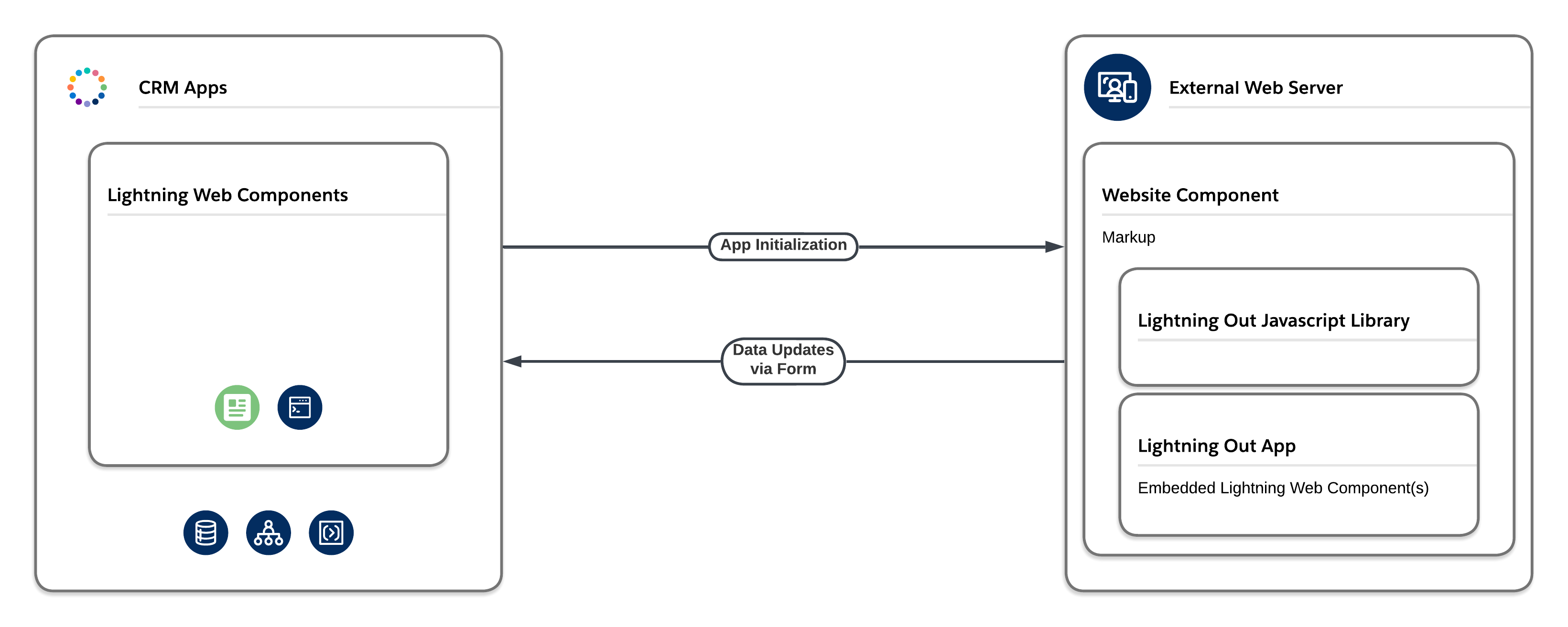
LWC components can also launch Flows with the Lightning-Flow component.
Omnistudio excels at exposing content to external sites via the OmniOut feature. With Omnistudio and OmniOut, you can compile your Omniscript forms and FlexCard components into standard components, and then run them off-platform in third-party sites or apps.
Currently, none of the form technologies that are covered in this guide are officially supported in Mobile SDK templates. If Mobile SDK is essential to your use case, we recommend building your form natively in your mobile application or building a Visualforce page, while keeping form factor in mind.
Dynamic Forms are perfect if you need to use the values in your form to create or update a record. You’ll need to leverage Flow, Omnistudio, or LWC for capabilities outside that scope, including creating decision or iteration layers, or generating Slack posts or emails using the inputs from the form.
-
What actions or logic need to be performed behind the scenes?
-
Do you need to use values from a related record?
-
Will your form need to complete its operations within a single transaction or across multiple transactions?
-
Do you need to integrate with external systems?
-
What are your requirements for reusability and modularity?
| Log and Actions | Hierarchical Data Management | Operate within One Transaction | Operate Across Multiple Transactions | Integration | Modular Design and Reuse | Packaging | |
|---|---|---|---|---|---|---|---|
| Dynamic Forms | Not Available | Not Available | Not Available | Not Available | Not Available | Not Available | Available |
| Screen Flow | Available | Not Available | Available | Available | Available | Available | Available |
| Omnistudio | Available | Available | Available | Available | Available | Available | Not Available |
| Screen Flow + LWC | Available | Available | Available | Available | Available | Available | Available |
| LWC | Available | Available | Available | Available | Available | Available | Available |
Flow offers standard actions for posting to Slack, sending emails, and interacting with Quip documents, and you don’t have to write code for any of these operations. LWC offers rich interactions with single records and related objects via wire adapters that interact with the User Interface API. LWC can also interact with multiple records using the wire for getListInfoByName.
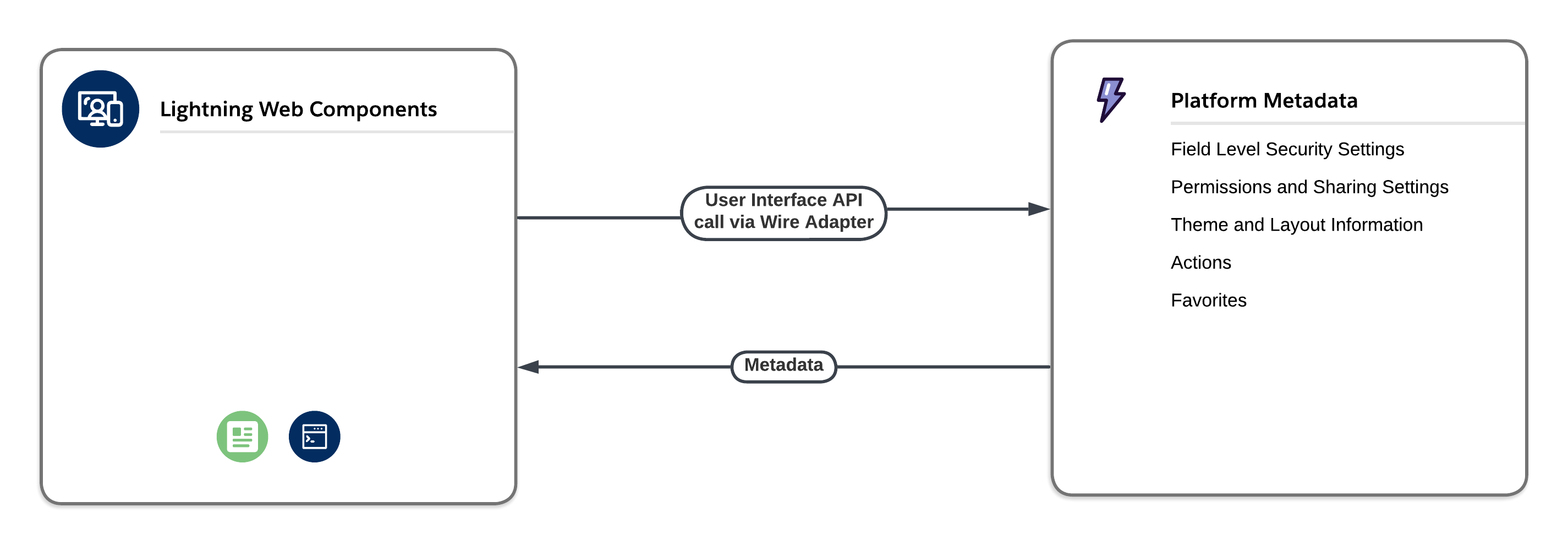
Omnistudio uses integration procedures and Data Mapper to obtain and transform data (both external and internal to Salesforce). Due to numerous code-free functions, it excels at flattening and expanding data sets with various levels of relationships.
Flow, Omnistudio, and LWC all integrate with Apex, so you can easily close any gaps within the solution you choose (for example, if you need filtering records from an LWC, you can use the wire adapter for Apex to create complex SOQL queries. If you’re swayed by click-based stories, consider using Flow or Omnistudio as a viable alternative to an Apex controller for your server-side needs.
You should also consider whether you want to immediately commit actions, or defer them to a particular part of your form. This is especially relevant if you’re using a multi-page form. Flow makes it easy to combine inputs from multiple forms (flow screens) and use them later in the wizard (flow) to perform certain operations, which is exactly how we recommend designing Flows. Perform actions at the end (in case users bounce back and forth between screens to change their answers).
Transactions and governor limits are integral to the Agentforce 360 Platform. If your use case is fairly simple, it may not be as important to control the transaction where a particular operation occurs. However, there are a few use cases where you may want to combine multiple operations into a single transaction rather than performing them across multiple transactions.
Here are a few examples:
-
Rollback: Let’s say your form creates multiple records behind the scenes. If creation of a third record fails, should the first two records be rolled back? If each of your actions are independent from one another, you can execute them as separate transactions. However, if they’re dependent upon one another—and you want the failure of one to also rollback the others—you should implement them as a single transaction. If your form is in Flow, you can use the Rollback element in the Fault path to roll back your transaction and ensure data integrity.
-
Downstream Impact on Governor Limits: When your form creates or updates a record, it’s important to consider what the downstream implications of that operation are:
-
What processes, workflow rules, Flow triggers, Apex triggers, or other items within the save order may fire based on the proposed record changes?
-
How do those collective changes impact the governor limits that are being consumed within that transaction?
-
If a particular record change may result in many downstream changes that impact your limits, it may be best to consider isolating that record change within its own transaction.
-
-
Batch Processing: You may need to batch multiple updates together (even within a UI context). Let’s say your multi-screen form iterates over a large group of records. Rather than committing a record update after each screen—wait until you’ve collected the updates for all of the records—and then submit one request to update all the records.
When you use Dynamic Forms to create or edit a record, you’re only performing one operation, and that operation is always the start of a net-new transaction.
When you’re building a screen flow, you have significant control over what occurs within a given transaction. Screens and local actions act as boundaries between transactions. Here’s a high-level summary of how transactions are managed within the screen flow architecture.
-
The end user interacts with a screen, and then clicks Next.
-
The client posts an input request to the API.
-
The API receives the request, and opens a transaction and database connection. Then, the API calls the Flow engine to invoke the request.
-
The Flow engine takes over and follows the appropriate path in the flow definition—until it hits a screen or local action node. Then, the engine returns information about that node to the API.
-
The API creates a response object that contains the details of the next screen to render, and returns that object to the client. At this point, database changes are committed (per the save order execution), and the database connection and transaction are closed.
-
The client uses the API response to render the next screen that the user interacts with.
-
Start from step 1 and repeat the process.
In other words, screens break transactions. When this occurs, any pending actions or DML are committed, the prior transaction is closed, and a new transaction begins.
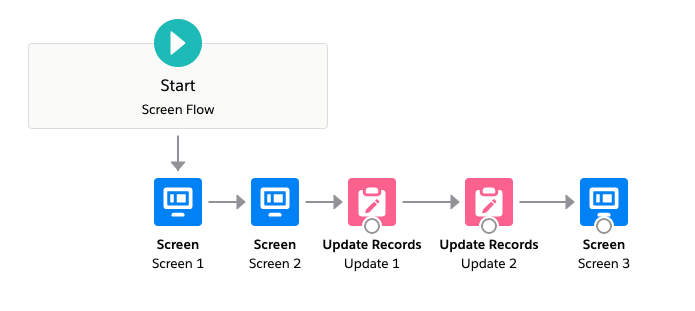 Keep in mind that the specific design elements (which operations you group into a given transaction) are up to you.
Here are a few examples:
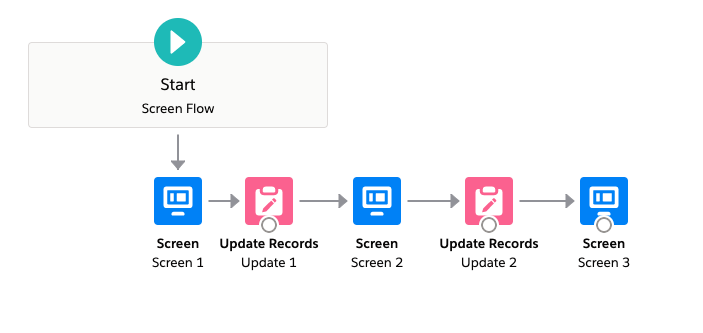
- When you begin, you’ll see a flow that collects inputs across multiple screens, and then performs several actions within one transaction.
- The next flow performs each operation in a separate transaction.
- Flows can also use Roll Back Records to enable you to roll back an entire transaction if a single operation fails within a series of database operations.
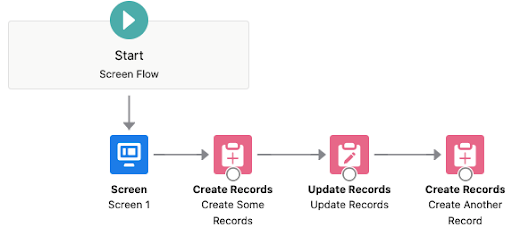 Let’s say you have a flow that creates records, updates records, and then creates additional records (illustrated in the next flow).
In this scenario, if the first two elements succeed and the last fails, the first two DML operations still create and update the appropriate records, but the third won’t.
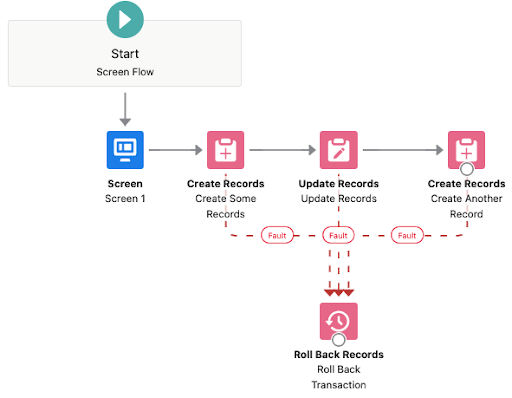 By using the Roll Back Records element, you can ensure that the entire transaction is rolled back if all three operations must occur collectively (as seen in the final flow).
Note: For more details, check out Flows in Transactions and Flow Bulkification in Transactions.
Your ability to control the transaction from an LWC is based upon the underlying services that the LWC is using to perform its operations. If you’re using the lightning-record-form base component, the underlying operation (creating or updating the record) occurs within a standalone transaction when the form is submitted.
In general, these rules apply:
-
Each UI API call is isolated within its own transaction.
-
If you need to perform multiple operations within a single transaction, send the inputs to a server-side technology (for example, an Apex controller or a Flow). Keep in mind that the regular transaction rules for that technology still apply.
Flow, Omnistudio, and LWC all support platform events (for event-driven architecture) and API integrations. In addition to custom Apex code, Flow and Omnistudio have declarative support mechanisms that can also integrate with APIs.
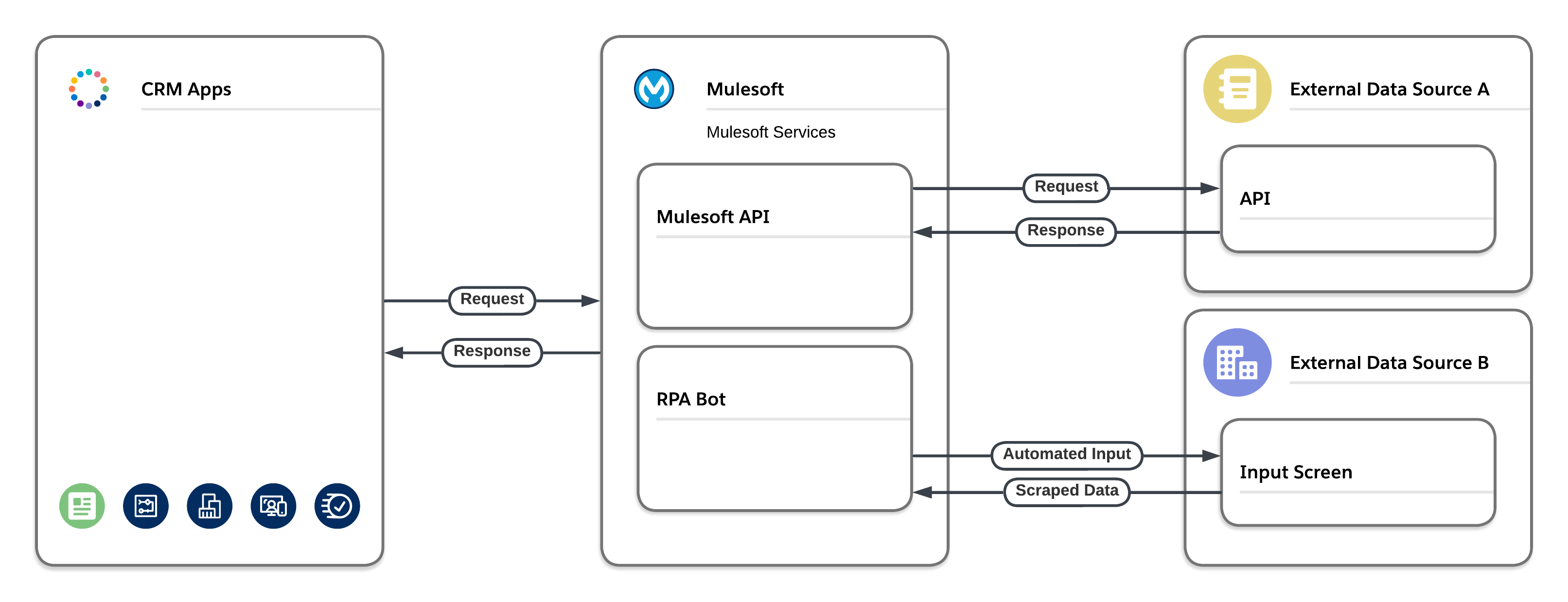
If you need to connect to a MuleSoft API or RPA bot, use MuleSoft Services, as this generates an External Service.
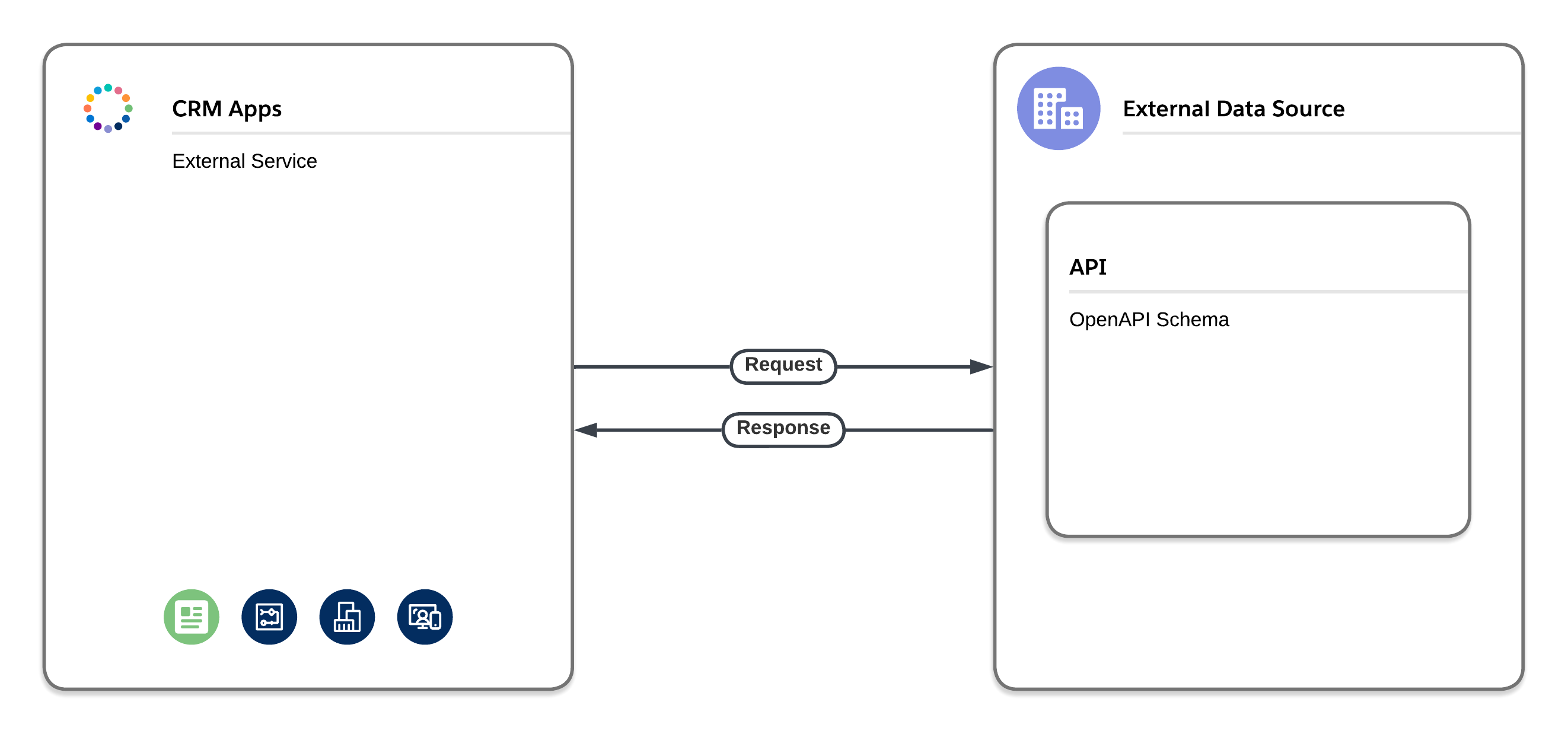
If the API has an OpenAPI schema, create an External Service.
For all other instances, use the HTTP Callout feature (powered by External Services) in Flow or the HTTP Action in Omnistudio.
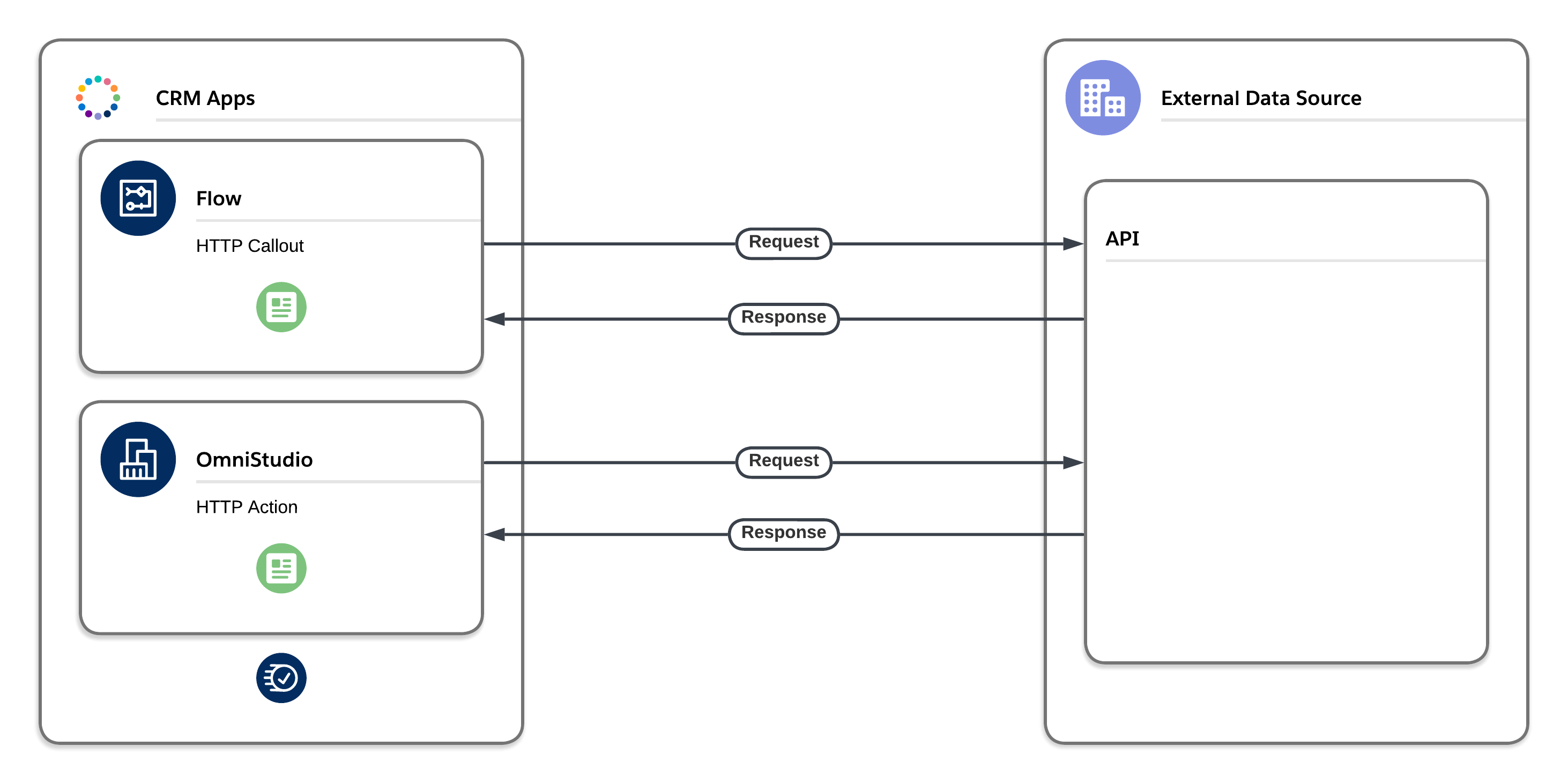
Omnistudio features a rich set of integration capabilities that can call out to external systems using integration procedures to transform data via Data Mapper.
Regardless of whether you use custom Apex code or an external service for implementation, a callout is still a callout.
Here’s what you need to know.
-
A callout may take a significant amount of time to process.
-
When a callout is executed synchronously, it’s performed while a database transaction is open.
-
Salesforce doesn’t allow you to keep a database transaction open if you have any pending database operations.
Keep in mind that the main limitation is the danger of leaving data in an inconsistent state, which occurs when you perform a create, update, or delete operation, and then execute a callout within the same transaction. This pattern isn’t permitted due to the third consideration mentioned above, which exists because of the first two considerations.
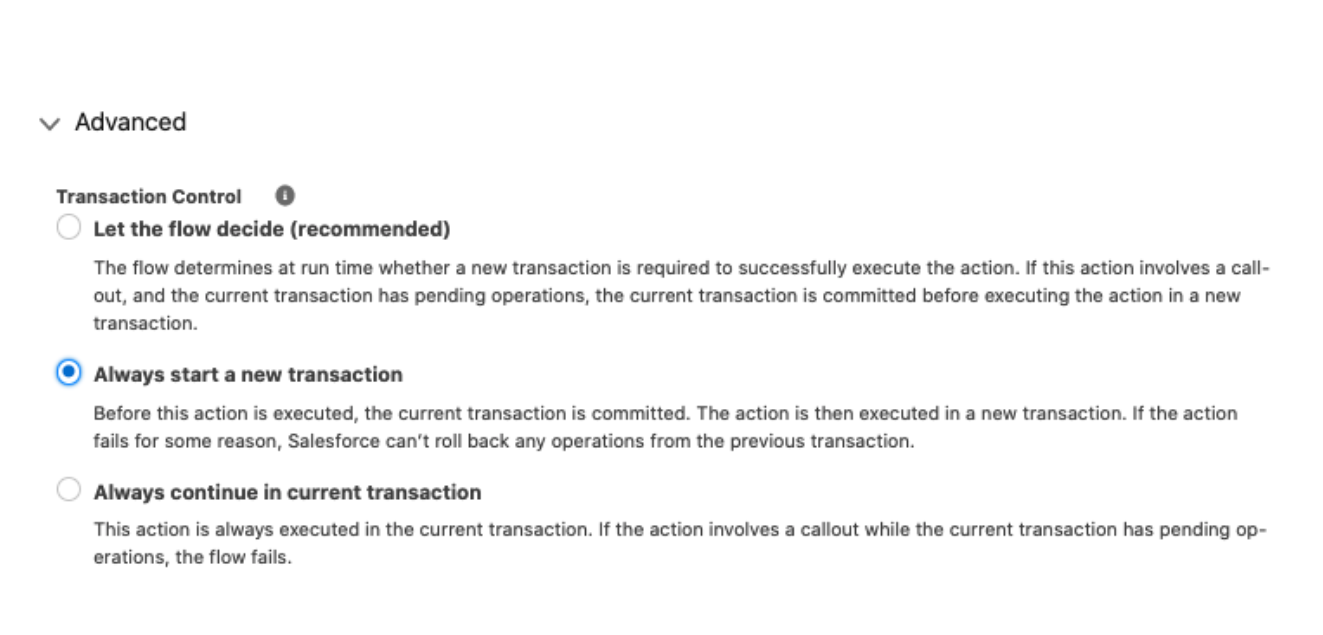
In Flow, you can bypass this limitation by breaking the transaction. Remember, screens and local actions reintroduce the browser context. While you can use screens and local actions when you’re working with external callouts, we recommend enabling Transaction Control in the invocable advanced settings. Transaction Control allows you to automatically end the transaction before a callout is made. To enable Transaction Control, select “Always start a new transaction” in the Advanced section of the invoked action.
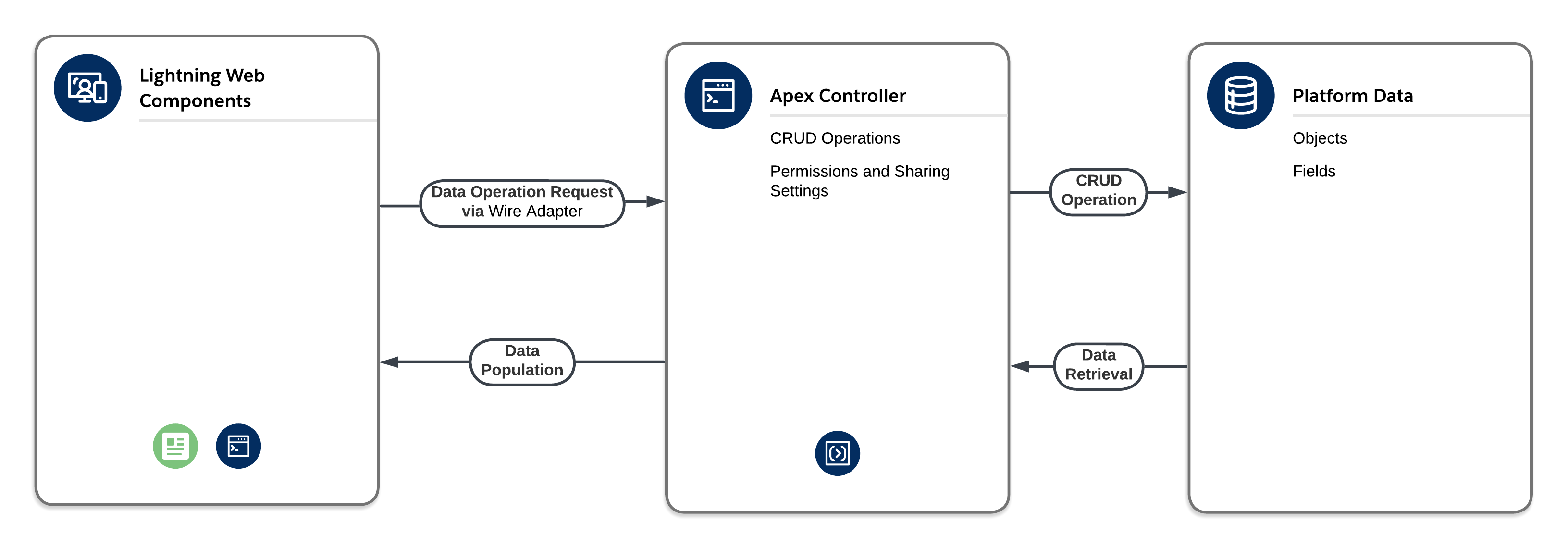
 LWC helps simplify the impact of callouts on the transaction. In other words, perform your data operations using the Lightning Data Service (LDS), and then use an Apex controller to make the external callout. Since the LDS call is isolated within its own transaction (separate from the Apex callout), this protects you from resultant data inconsistency.
Dynamic Forms don’t support reuse. Each one is tied to a specific Lightning record page for a specific object; however, you can assign that Lightning record page to multiple apps, profiles, and so on.
Similar to how you can write libraries, utilities, and components that can be used across multiple components, you can also apply similar design patterns when you’re creating flows by harnessing the power of subflows. To do so, save your flows in smaller, modular buckets, and then call them from other flows using the Subflow element. If your design calls for it, you can build a flow that’s useful on its own and as a subflow.
Omnistudio is inherently built for modularity. Data Mappers, Omniscripts, FlexCards, and Integration Procedures are all built independently, but they can also work interchangeably. FlexCards can also be built as LWC components that are embeddable within other LWCs, Omniscripts, record pages, and Experience Cloud sites.
Screen flows, Omniscripts, and LWCs can all be built for reuse and embedded within a variety of locations, including external sites and Lightning Out applications. When you design your solutions to be composable, you also gain adaptability and stability benefits.
All technologies that are used to create or update records must adhere to system-level validation, whether they’re classic validation rules or custom validations that are built into an Apex trigger. No matter what technology you use to perform record changes, every change must go through the save order. This means that in addition to validation rules, record changes are also processed by a number of before- or after-save flows, before- or after-triggers, escalation rules, assignment rules, and so on.
Note: If you haven’t already done so, review and bookmark the Apex order of execution.
-
Does your form have any additional requirements beyond system-level validation?
-
Do you need to set required or read-only fields dynamically within the form?
| Respect System-Level Validation | Custom Field-Level Validation Specific to this Form | Custom Field-Level Validation | |
|---|---|---|---|
| Dynamic Forms | Available | Not Available | Not Available |
| Screen Flow | Available | Not Available | Not Available |
| Omnistudio | Available | Available | Available |
| Screen Flow + LWC | Available | Available | Available |
| LWC | Available | Available | Available |
Typically, inputs on a flow screen or Omniscript step are unbound, so the form itself doesn’t natively adhere to the system-level validation that’s associated with a particular object. However, the values that you use to create or update records are processed in the save order, which means that they pass through the object’s system-level validation.
Note: Not all Screen Flow components support input validation.
Similar to page layouts, Dynamic Forms let you set the requiredness and read-only state at the page level. Keep in mind that you can’t override system-level settings.
Flow provides flexibility for customizing form input validation. Multiple checks are performed at the client level (for example, flagging required fields that are missing and data-type checks, as well as compatible formulas within input validation rules). As an added level of security, input validation is also evaluated on the server. When a user clicks Next, Flow sends the inputs to the server for validation again. If any invalid inputs are returned, navigation is blocked and the appropriate error is displayed.
The server validates the inputs by checking:
-
The input’s requiredness setting, or whether the entered value is compatible with the underlying data type.
-
The custom validation of the input. You need to supply a Boolean formula expression and an error message to display when the formula expression isn’t met.
-
The custom validation of the underlying component. If you’re building a custom LWC for a Flow, you need to add your own validation code to the validate() method.
You can also provide accessible user alerts via the Message component in Screen Flows, but this doesn’t prevent a user from navigating to other pages, or progressing to the next step in a guided Flow. The Error state within the Message component is best used on dedicated error screens that are triggered via a fault path when navigation is disabled.
Omnistudio features robust error and validation handling via the Set Error action in combination with Conditional Views and the Messaging component.
For LWC, most of the base components perform their own client-side validations (for example, lightning-record-form respects system-level requiredness, but not page-level requiredness). For your custom components, you can build your own validation mechanisms.
Keep in mind that fields that require users to input data should appear at the beginning of your forms. Validate user inputs on the client side before forms are submitted (when possible).
Static forms are outdated. Today, the focus has shifted to dynamically updating forms with the right properties and values for a specific user, at a specific time, in a specific place. Let’s take a closer look at what’s feasible via Salesforce form-building tools.
-
What types of interactions or conditions should trigger dynamic responses within your form?
-
Do you need to execute off-screen (background) operations while your form is being filled out?
-
Do you need to set fields as visible, required, read-only or disabled, or do you need to change formatting based on form inputs?
| Execute Off-Screen Data Operations | Conditional Values and Calculations | Conditional Visibility | Conditional Requiredness | Conditional Formatting | Conditional Read-Only State | Conditional Disabled State | |
|---|---|---|---|---|---|---|---|
| Dynamic Forms | Not Available | Not Available | Available | Not Available | Available | Not Available | Not Available |
| Screen Flow | Available | Available* | Available | Available | Not Available | Available | Available |
| Omnistudio | Available | Available | Available | Available | Available | Available | Available |
| Screen Flow + LWC | Available | Available | Available | Available | Available | Available | Available |
| LWC | Available | Available | Available | Available | Available | Available | Available |
| *Limited to components that use a resource picker and not a static checkbox | |||||||
Reactive Screens enable Screen Flow interactivity. Reactivity allows individual components on a flow screen to communicate with each other, which makes Screen Flows more powerful.
Execute Off-screen Data Operations
Screen Flows provide a declarative approach to fetching data on the same screen via Screen Actions. Screen Actions allow you to trigger autolaunched flows on any change within the screen, or when a user clicks an Action Button component. You can map autolaunched flow results to the same screen, which eliminates the need for users to navigate to another screen.
LWC provides a full array of wire adapters that provide access to Salesforce data to dynamically populate data in form components, which allows developers to update, delete, and create records via Apex controllers.
Visibility
Visibility can be dynamically controlled in all form-building tools. Dynamic Forms, Flow Builder, and Omnistudio address this using component visibility features. You can declaratively show or hide fields based on other values within the form, or whether the user is completing the form on a mobile device.
-
Dynamic Forms control visibility based on record field values, lookup fields, and form factor.
-
With Flow, you can base a visibility rule on other screen inputs, as well as other resources that populate earlier in the flow (for example, formulas or values from other records).
-
Device-Based Rules: It may not be obvious from the start, but you can use a formula to show or hide a particular field when the user is on a mobile device. Write a flow formula that checks the value of the $User.UIThemeDisplayed global variable. If the value is Theme4t, the user is completing the form using the Salesforce Mobile App.
-
Evaluate Other Resources: Manual variable and formula references are only evaluated on the server. This means that the value that resource has when the screen first renders is the value that it will have until you navigate to another screen. During navigation, the flow runtime submits a request to the flow engine (the server), and it returns the latest manual variable and formula values. If you expect your visibility rule to update as the user passes through a single screen (for example, onblur), you need to ensure that you’re only referencing values from the other components on the screen.
-
-
With Omnistudio, you can conditionally show or hide components by setting up a Conditional View property. However, you can’t add more than one Conditional View property for an input.
Conditional Input States
If you need to dynamically control any other properties (for example, whether a field is required, disabled, or read-only), there are a few options. LWC provides full, reactive control over your input state. With Reactive Screen Flow components, you can dynamically control component attributes (for example, read-only, disabled, and required) for standard components that support it, while Omnistudio supports the full spectrum of component-specific attributes. If your requirements dictate that you need Flow, and the component doesn’t support a specific attribute state, you can create an embeddable LWC to achieve a dynamic input state.
If you need to dynamically control any other properties (for example, whether a field is required or read-only), use LWC in the short term since you have full control. This is especially true if you have bespoke requirements for how to handle onblur or onclick.
Reactive LWCs in Screen Flows
If you’re building LWCs that can react to and change other components on a Screen Flow, check out the LWC Best Practices for Screen Flows guide to ensure that your components integrate with the flow runtime engine and function as intended.
| Standard Event Handling(onblur, onfocus) | Custom Event Handling | |
|---|---|---|
| Dynamic Forms | Not Available | Not Available |
| Screen Flow | Not Available | Not Available |
| Omnistudio | Not Available | Available* |
| Screen Flow + LWC | Available | Available |
| LWC | Available | Available |
| *The Omnistudio Standard Runtime does not support Pub/Sub, but does support Windows postMessage | ||
For custom events, If some of your inputs (or the entire form) need to communicate with another element on the page, LWC is your only option.
-
To communicate within the same DOM tree, use the CustomEvent interface.
-
To communicate across the DOM, use the Lightning Messaging Service.
-
If Lightning Messaging Service isn’t supported for your target container, use the pub/sub module.
-
For more detailed information , check out Communicate with Events and Communicate Across the DOM in the Lightning Web Components Dev Guide.
-
For Omnistudio, check out Communicate with Omniscript from a Lightning Web Component.
To provide the best user experience, it’s important to ensure that your form styling is consistent with the rest of the app or site where it’s being embedded. This may mean using standard templates that are provided by Salesforce, or creating a custom CSS that uses every pixel in the design to provide a sharper look and feel.
Admins can configure a limited set of Screen and Component Styling Overrides (for example, colors, borders, and button appearances), for the screen container or for individual components. These overrides are applied after themes and branding, which allows builders to make targeted visual adjustments without impacting the rest of the application.
Styling overrides are intended for localized visual exceptions (for example, highlighting a confirmation screen or emphasizing a specific call-to-action (CTA); they aren’t a full styling system. They don’t provide CSS-level control, and they aren’t designed to be reused across screens or flows.
From an architectural perspective, styling should follow this precedential order:
-
Themes and branding: Lightning Themes, Experience Builder Branding Sets, or LWR site theming
-
Flow styling overrides: Targeted screen or component adjustments
-
Custom components (LWC): when pixel-perfect control or reusable design patterns are required
Using themes and design systems helps to ensure that styling remains consistent, scalable, and easy to maintain over time.
-
How sophisticated is your desired styling and CSS?
-
Do you need custom, pixel-perfect styling or standard themes?
| Direct Styling | Org and Experience Builder Themes | Pixel-Perfect Styling | |
|---|---|---|---|
| Dynamic Forms | Not Available | Available | Not Available |
| Screen Flow | Not Available | Available | Available** |
| Omnistudio | Available* | Not Available | Available |
| Screen Flow + LWC | Not Available | Available | Available |
| LWC | Not Available | Available | Available |
| *FlexCards only **Certain style attributes can be configured for screen components, but not CSS overrides. | |||
FlexCards is the only product in this guide that enables you to declaratively control the styling and layout of the UI you’re building within the tool (for example, margins and padding, typography, colors, and so on).
Dynamic Forms and Flows respect declarative theming features. If you need additional control (beyond what Salesforce Themes, Experience Builder Branding Sets, or LWR Experience Cloud Sites support), consider a programmatic solution.
Teams that are comfortable working with CSS have several options:
-
Flows and LWCs inherit standard design tokens.
-
Omniscripts and FlexCards include customizable design system support via Newport.
-
With LWC, you can write your own components and fully control their HTML and CSS.
When possible, we recommend using themes and design systems to ensure a consistent look-and-feel across all of your content.
Note: You can embed Lightning components in Flows. If you need pixel-perfect control over the look-and-feel of your form, but you also want to use the other benefits of Flows (for example, the navigation model), you can have the best of both worlds! The same principle applies to Omniscripts and FlexCards.
Choosing a good layout is crucial to designing streamlined forms that enable fast and efficient data entry and increase data integrity.
-
How can you structure form layouts to optimize user experiences?
-
How can you present existing data to users in a way that makes it easier for them to enter new data into your forms?
| 2 Columns | 4 Columns | Beyond 4 Columns | Repeating Blocks of Data | Tab Containers | Accordion Containers | |
|---|---|---|---|---|---|---|
| Dynamic Forms | Available | Not Available | Not Available | Not Available | Available | Available |
| Screen Flow | Available | Available | Not Available | Available | Not Available | Available |
| Omnistudio | Available | Available | Available | Available | Available* | Available |
| Screen Flow + LWC | Available | Available | Available | Available | Available | Available |
| LWC | Available | Available | Available | Available | Available | Available |
| *Tabs can be used if embedding data in a FlexCard in an Omniscript | ||||||
Dynamic Forms support two-column layouts that can be broken into individual sections within fields. These sections can be placed within components (for example, tabs and accordions) to create organized, easy-to-use layouts.
Flows can also be rendered using the Section component. You can add up to four columns and an unlimited number of sections on the flow screen. The sections component is also responsive to screen width, so it also works on smaller screens. It gives you the ability to apply conditional visibility to the entire section, which makes it easier to mass-apply visibility to multiple fields within the section. Flow Sections also support column headers and give an accordion-like experience where users can collapse the entire section by clicking on the label.
Omniscripts feature a variety of layout options for displaying fields and data. You can create sections of data with up to 12 columns, including conditionally-collapsible accordions.
With LWC, you can use lightning-record-[edit|view]-form and the supporting lightning-[input|output]-field to control the layout. The only layout restrictions come from HTML and CSS. The lightning-record-form component respects the section configuration in the associated page layout (for example, if a section is two-column in the page layout, it’s also two-column in the component).
If your form needs to be accessible by users in different regions or who speak different languages, you need to ensure that the tool you’re using to build it meets your localization requirements.
Note: For forms specifically, localization requirements typically involve translating text elements into other languages.
-
Is your form going to be used in more than one country or region?
-
Does the text in your form need to be localized to other languages?
| Labels Entered in the Builder | Labels in the Code | |
|---|---|---|
| Dynamic Forms | Available* | Not Available |
| Screen Flow | Available | Available |
| Omnistudio | Available | Available |
| Screen Flow + LWC | Available | Available |
| LWC | Not Applicable | Available |
| *Field Section Headings only | ||
If you localize custom fields, Dynamic Forms respects the translated labels. Dynamic Forms also respect any custom labels that are assigned to component labels and attributes in Lightning App Builder.
Flow supports the translation of user-facing labels for all standard and custom screen components via Translation Workbench.
You can localize labels, help text, and error messages on these screen components:
- Text
- Long Text Area
- Number
- Currency
- Checkbox
- Radio Buttons
- Picklist
- Multi-Select Picklist
- Checkbox Group Password
- Date
- Date/Time
There is no built-in translation support for out-of-the-box actions (for example, Send Email or Post to Chatter), but there is a workaround. If you use a custom label to define the translated labels, you can reference that custom label in the action or component when you configure it in Flow Builder. To do so, you need to create a flow formula that references the custom label, and then reference that formula in the appropriate places within your flow.
Omniscripts make use of custom labels for translations. For more information, check out this help doc to ensure that your Omniscripts are multi-language ready.
For LWC, certain base components automatically inherit translations of the associated object’s fields, help text, and validation messages if they’re configured in Translation Workbench (for example, lightning-record-form).
If you need to introduce novel translatable labels in your code, custom labels are the way to go. Declare the custom label that you need, and then import it into your component from the @salesforce/label scoped module.
Use this section to evaluate security, quality, and operational constraints before implementation.
Security is a complex topic, and when it comes to building forms, there are a number of considerations that may not be obvious. At the foundational level, you need to ensure that the form is running in the correct context, and that users have the permissions they need to work with its underlying data. Beyond this, you may also want to take extra measures to strip out potentially malicious code or URLs from rich-text fields, prevent certain users from accessing the form, or place limitations on the types of locations where admins can potentially embed the form in the future.
Be sure to document your security requirements thoroughly before choosing a tool. For additional guidance on this type of documentation, check out the Salesforce Well-Architected Security Policy Template.
-
Should the form check the user’s access before performing certain operations?
-
Should you sanitize user inputs?
-
Do you want to control who can access the form?
-
Do you want to control where the form can be embedded?
| Elevate User Permissions | Control Who Has Access | Restrict Allowed Locations | |
|---|---|---|---|
| Dynamic Forms | Not Available | Available | Not Available |
| Screen Flow | Available | Available | Not Available |
| Omnistudio | Not Available | Available | Not Available** |
| Screen Flow + LWC | Available | Available | Not Available |
| LWC | Available* | Available | Available |
| *Requires Apex **While Omniscripts cannot have a specified set of target locations, FlexCards can. | |||
When a program runs in user context, Salesforce enforces a series of access checks, which include verifying field-level security, CRUD permissions, and record access based on your organization’s sharing rules (for example, users would only be able to run a case update form if they have the ability to update cases, the appropriate field-level security, and access to the record in question).
What happens if you want users to be able to perform a particular operation when they’re using your form, but not via any other form or interaction? That’s where System Context comes in!
System Context allows you to elevate a user’s permissions for the duration of the session (for example, the user doesn’t need to update access to the Case object to successfully complete your case update form). This is especially useful for unauthenticated communities. Rather than granting guest users potentially dangerous abilities, set your form to run in system context.
System Context should only be used when it’s absolutely necessary. When a form runs in System Context, every CRUD operation bypasses the object- and field-level security and sharing components. Also, System Context has no bearing on who Salesforce considers to be the actor (the name you see in the Last Modified By field). For each operation that your form performs (for example, a case update), the actor is the current user (even if the form runs in a different context).
Note: Dynamic Forms, Omniscripts, and LWCs always run in user context, and there’s no way to override this behavior.
Screen Flows run in user context by default, but you can set them to run in system context. You can decide whether the flow should grant access to all data, or if it should enforce record-level access.
-
If you embed a Lightning component within a flow that runs in system context, the flow won’t override the component’s context. If you need to bypass user-access checks, use the flow to perform those operations and pass the appropriate data into or out of the Lightning component. Some out-of-the-box components (for example, Lookup) can’t operate within system context.
-
If your flow calls Apex actions, other nuances are involved.
-
If the Apex class is set to inherited sharing, then it will run in system context with sharing no matter how the flow is set.
-
If the class has no explicit sharing declaration, then it will run in system context without sharing no matter how the flow is set.
-
If the class is set to with sharing or without sharing, it will override the flow’s context.
-
Query Records in System Context with Experience Cloud Sites
If you’re running a Flow in System Context on an Experience Cloud site (especially if it’s unauthenticated), store only specific fields in your Get Records elements. When you’re working with Flow and you pass the results of a Get Records element into a Subflow, invocable action, or a Lightning component, all of the fields from that object may be inspected by the browser’s developer tools. Despite your intentions, this may make fields available to Experience Cloud users. To ensure that only the correct fields are exposed when System Context is enabled, specify those specific fields in your Get Records elements.
Note: Omniscript logic runs on the client side, which makes it possible for attackers to modify the expected execution of an Omniscript and view responses to Integration Procedures, Data Mappers, and Apex method calls via the browser’s developer tools. When you’re using Omniscript, it’s important to execute business logic on the server side (when possible), and implement input validation rules for any Apex methods that are exposed via an @InvocableMethod annotation.
Sanitize Inputs
To protect your organization from bad actors, use input sanitization. Let’s say you have an input on a publicly accessible form that can be mapped to a Rich Text field within your organization. You may want to consider enabling automation that strips out any HTML that may hide malicious URLs.
It isn’t ideal to implement sanitization at the form level because you may have any number of sources that write to these fields. To help combat this issue, create a Fast Field Update Flow (Before Save), or use an existing Apex Trigger to strip out or modify any potential HTML that may be entered within the form.
-
Allow Flows to run in their default context (unless you need to elevate the current user’s access for a specific operation).
-
Avoid running Flows in System Context for guest users. Create permission sets with limited field access and assign them to the Experience Cloud guest user’s profile.
-
When querying records in System Context Run Flows on Experience Cloud sites, only store the fields that you need in the Get Records element or Invocable Actions.
-
If a Flow performs a variety of operations—all of which don’t require elevated access—use Subflows to isolate the operations that should run within System Context.
-
If you’re embedding a form within an external webpage, it may need to be mapped to Rich Text fields to help prevent potential phishing attacks. To do so,, sanitize user inputs to remove HTML using a Fast Field Update Flow or Apex Trigger.
-
Omniscripts, FlexCards, and LWCs run in user context by default.
-
LWCs run in user context by default.
-
Flows run in user context, but you can override it by using an Apex controller.
-
Operations that are performed within the UI API are run in user context.
-
Operations that are performed with an Apex controller depend on the specific class. To perform these operations in system mode, set the Apex class to with sharing or without sharing.
If you need to control who can access a form, review the container where the form is embedded (for example, you can assign Lightning pages to be available for particular apps, record types, or profiles). If certain inputs are sensitive, use visibility rules to further control what’s displayed to whom. This feature applies to Dynamic Forms and Screen Flows.
You can restrict a Flow to particular profiles or permission sets (similar to Apex class or Visualforce pages). Flows are unrestricted by default, which means that any user with the Run Flows user permission is able to access them.
If you’re using Omnistudio, you can configure an Apex class permissions checker that requires users to have explicit access to the Apex class that administers remote actions from Omniscript, Flexcard, Classic Card, or REST APIs.
Note: Apex class permission checks only apply to Apex classes. It’s also advisable to set profile-level permissions for Integration Procedures and Data Mappers.
-
If you’re exposing a Flow to guest users, you should only grant guest user profile access to the Flows that they absolutely need. It’s possible to add Run Flows to guest user profiles; however, this practice can be risky.
-
Use caution when working with Flows that operate in System Context. You should restrict these Flows to a particular set of users since they have fewer checks and balances in place to protect your data.
-
Ensure that any Omniscript that runs Apex within a guest user community has with sharing listed in the Apex class definition.
-
For guest user profiles, only assign the Apex classes that you want to allow guest users to call. By following this practice, it helps to prevent unintentionally exposing additional business logic to guest users.
For LWCs, you can check the current user’s permission assignments to confirm whether they have a particular standard or custom permission. You can import Salesforce permissions from the @salesforce/userPermission and @salesforce/customPermission scoped modules directly in JavaScript. You can also use Apex to check permissions.
LWCs are only available in a given location after they’ve been added as a valid target (for example, you can make a component available on record pages and unavailable as a utility bar item).
Once a Screen Flow is activated, it’s available in all of the locations that Screen Flows are supported. Flow Builder supports multiple types of Flows that have screens. The most prominent type is Screen Flow, but there are a few other specialized types that are restricted to specific locations (for example, the Field Service Mobile App only supports Field Service Mobile Flows). This is similar to Contact Request Flows, which are only supported in Experience Cloud.
Regardless of the Flow type, the person creating the Flow has no control over where the Flow is embedded. Flows are available in every location where that specific flow type is supported.
If you’re using Salesforce Industries, there’s a slight caveat when it comes to Omniscript.You can’t specify a target for an Omniscript; however, you can specify a target for the FlexCards that you want to embed.
At Salesforce, there are several end-to-end test automation tools (for example, check out Salesforce UTAM) that allow you to simulate how a user interacts with your forms. You can write tests for any standard or custom UI, including Lightning pages and Screen Flows.
Note: These types of tests can’t verify the outputs for the methods that are being performed. Keep this in mind when you’re configuring your UI test automation requirements.
-
Do you need automated testing for your forms?
-
What types of tests do you plan to perform?
-
What level of granularity is necessary for test automations?
| Unit Tests | End-to-End Automation | |
|---|---|---|
| Dynamic Forms | Not Available | Available* |
| Screen Flow | Not Available | Available* |
| Omnistudio | Available* | Available* |
| Screen Flow + LWC | Available* | Available* |
| LWC | Available | Available |
| *Requires Code | ||
Consider UI Test Automation Requirements
Unit tests provide granular automation and validation that aligns with industry standard CI/CD systems and tools, which test the business logic, JavaScript controls, and outputs of specific components. If you choose a low-code approach, you won’t be able to self-author tests; however, Salesforce rigorously tests all end-to-end offerings.
If your component’s methods are complex, you can text them individually by placing the methods into dedicated JavaScript files. This allows you to import them into an LWC, and then into a Jest test (for example, import { sort } from ‘c/utils’;).
You can use a no-code solution from an ISV, build a custom test-automation solution, or use an open-source test framework (for example, Selenium WebDriver or WebdriverIO) for end-to-end automation. These solutions are valid for all Salesforce UI interactions (for example, a Dynamic Form in a Lightning page, a Screen Flow in a utility bar, or an LWC in a quick-action Flow).
After you deploy your form to a production environment, you need to ensure that it’s being used effectively. Depending on your use case, this may mean tracking the number of times your form has been filled out to the amount of time the average user spends completing the form before submitting their information. It’s important to identify your trackable KPIs prior to choosing a tool.
-
Do you need to track form usage?
-
Which KPIs can determine whether the form is being used effectively?
| Page Views | Time Spent on Form | Track Form Completion | Track Success Rate | |
|---|---|---|---|---|
| Dynamic Forms | Available** | Not Available | Not Available | Not Available |
| Screen Flow | Available | Available* | Available | Available |
| Omnistudio | Available | Available* | Available | Available |
| Screen Flow + LWC | Available | Available* | Available | Available |
| LWC | Available** | Available* | Available | Available |
| *Available when Package-Based Omnistudio Runtime is enabled** Available by tracking parent Lightning page usage | ||||
If you need to track the overall form usage and adoption, use low-code tools. Dynamic Forms and Screen Flows are trackable via out-of-the-box custom reports. However, Screen Flow tracking reports provide additional granularity. If you need to track LWC usage, the out-of-the-box availability depends on where you’re using the LWC. If it’s on a Lightning page, all of the available Lightning page usage tracking elements also apply to your LWC. This is also true for LWCs that are embedded in Flows.
Dynamic Forms aren’t trackable out-of-the-box; however, you can track the usage of the parent Lightning page via Lightning usage objects. To track standard Lightning pages, use the Users with Lightning Usage by Page Metrics custom report. For custom Lightning pages, use the Users with Lightning Usage by FlexiPage Metrics custom report.
Flows can help you track adoption for specific forms. Use the Sample Flow Report: Screen Flows to answer these types of questions:
-
What’s the completion rate for this form? Is it currently well-adopted?
-
How long does it take users to complete this form?
-
Which screen do users spend the most time completing?
-
How often do users navigate to previous screens?
-
How often do errors occur?
If the standard report doesn’t meet your needs, you can clone it and make changes or build your own report from scratch using the Screen Flows report.
If you’re using the package-based Omniscript runtime, you can also use the Omnistudio for Vlocity Tracking Service. This service tracks all types of events (for example, you can track the time that it takes to complete the steps in an Omniscript, which helps to identify process improvements).
Note: There isn’t an out-of-the-box option to track an LWC that isn’t embedded in a Screen Flow, Omniscript, or Lightning page, but you can build a custom solution using Apex.
You may be familiar with using change sets or the DevOps Center to deploy your solution to testing environments or to production. These deployment options fully support Dynamic Forms, Flows, and LWCs. However, Omnistudio requires a separate tool, the IDX Workbench.
-
How do you plan to deploy the form?
-
Does the form need to be distributed to more than one Salesforce Org?
| First Generation Managed Packages (1GP) | Second Generation Managed Packages (2GP) | Unlocked Packages | Change Sets | DevOps Center | |
|---|---|---|---|---|---|
| Dynamic Forms | Available | Available | Available | Available | Available |
| Screen Flow | Available | Available | Available | Available | Available |
| Omnistudio | Not Available | Not Available | Not Available | Not Available* | Not Available* |
| Screen Flow + LWC | Available | Available | Available | Available | Available |
| LWC | Available | Available | Available | Available | Available |
| *Use IDX Workbench to deploy Omnistudio Solutions to other orgs. | |||||
If you’re an ISV or a partner who plans to package your solution for distribution on AppExchange, check out Dynamic Forms, Flows, and LWCs. Keep in mind that Omnistudio doesn’t support packaging.
This guide is meant to show you what functionality and customization levels are available via Dynamic Forms, screen flows, Omnistudio, and LWC.
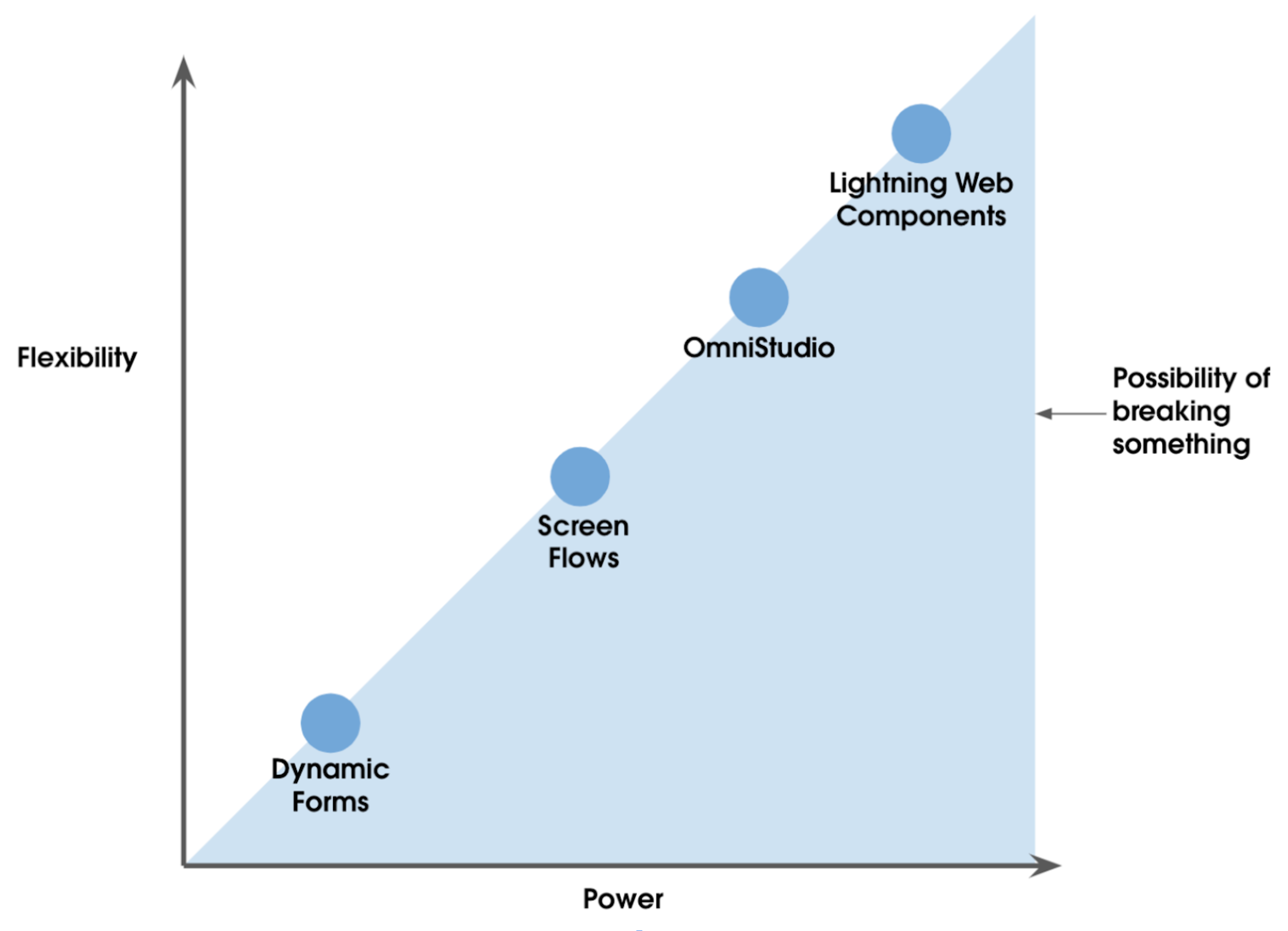 Here’s a high-level overview.
-
When it comes to building forms, LWC is the most robust, customizable option, but it has the fewest guardrails in place. That’s why it’s crucial to build your components with security and scalability in mind.
-
Dynamic Forms is the least flexible option, but it has far fewer opportunities for missteps.
-
Flow and Omnistudio fall slightly in the middle. They’re more powerful than Dynamic Forms, but they aren’t quite up to the LWC level. However, they have fewer guardrails than Dynamic Forms, and they’re harder to break than custom code.
You may find that multiple tools fit your needs. If so, the decision ultimately depends on which tool is best for your team. For more information on additional aspects to consider, check out these Architect Decision Guides.
- When you’re comparing tools, it’s important to assess how much expertise your team has with regard to each tool?
- How many of your developers are well-versed in LWC or JavaScript?
- Are there any developers on your team that are experts in Flow Builder, or who have expressed an interest in learning more?
While we won’t go into specific details, here’s a bit more information on how these specific tools relate to the assessments we’ve covered so far.
Delivery Delegation
Keep in mind that even if some of your requirements call for LWC, it doesn’t require the entire solution to be built using LWC. It’s important to determine how you can build your solution modularly. To do so, you need to identify which parts require coded LWC, and which parts don’t. The parts that don’t require LWC should be built using a low-code solution.
When it comes to Flow and LWC, there are various components (for example, Reactive Screen Components and Screen Flow) that can sync with one another on the same screen to unlock new tools for architects, admins, and developers. Developers can now create purposeful, modular components that can be reused across the organization, which helps boost team productivity. This allows developers to save time by using a mix of standard and custom Flow components to achieve form dynamism, which gives them more time to focus on solving new challenges. With the introduction of Reactive Components in Flow, there has never been a more appropriate time to mix Flow and LWC when building forms.
Long-Term Ownership and Maintainability
If you’re creating a multi-step form, start with Flow or a mix of Flow and LWC. If the team that’s maintaining the form is a low-code team, ensure that the solution is as configurable and extendable as possible for your intended audience. To improve stability and maintainability, it’s important to organize your solution into composable units, no matter which tool you choose.
Performance considerations that relate to Dynamic Forms, Screen Flows, Omnistudio, or LWC are based upon the framework where the technologies are housed. Technologies that are based on LWC tend to outperform those that are based on Aura. Due to several core features that are implemented natively in web engines (rather than in JavaScript via framework abstractions), the LWC provides enhanced performance benefits.
So, how do we harness these performance benefits for our form technologies at Salesforce? Let’s take a closer look.
-
Dynamic Forms (integrated within Lightning page metadata) is built upon an LWC-stack foundation, which enables us to implement several long-awaited features. As an added performance bonus, Dynamic Forms uses progressive rendering, which improves load time for pages that have a large number of fields.
-
Screen Flows are built upon LWC. Most of the individual out-of-the-box components have now been converted to LWC with the exception of the File Upload and Image components. While the Flow team has converted the flow runtime client to LWC (and most of its components), customers still need to convert their Aura screen components to LWC. Keep in mind that Salesforce only supports LWC components within the Reactive Component framework in Screen Flows. For more information, check out the Lightning Web Components for Aura Developer Trailhead module. If you’re contemplating building a custom component for a Screen Flow (or any other container), choose LWC!
-
There are several versions of Omnistudio that are available. If you’re a long-standing customer, you may be using Angular. We encourage all new customers to use LWC-based Omniscripts and FlexCards. We also encourage existing customers to migrate off of Angular.
-
LWC is built upon LWC.